Transaction Enquiry Wireframes
Front Office Transaction
The 'front office transaction' option of the 'Transactions' menu takes one to the 'front office transaction screen'.
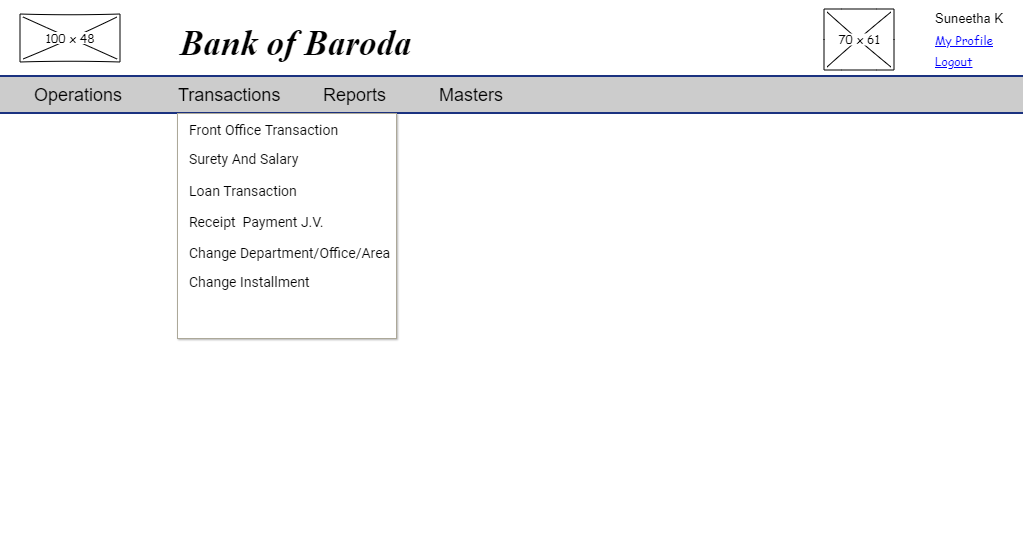
User story reference: U0106
Enter the membership number and click on "OK" button on the 'front office transaction screen'.
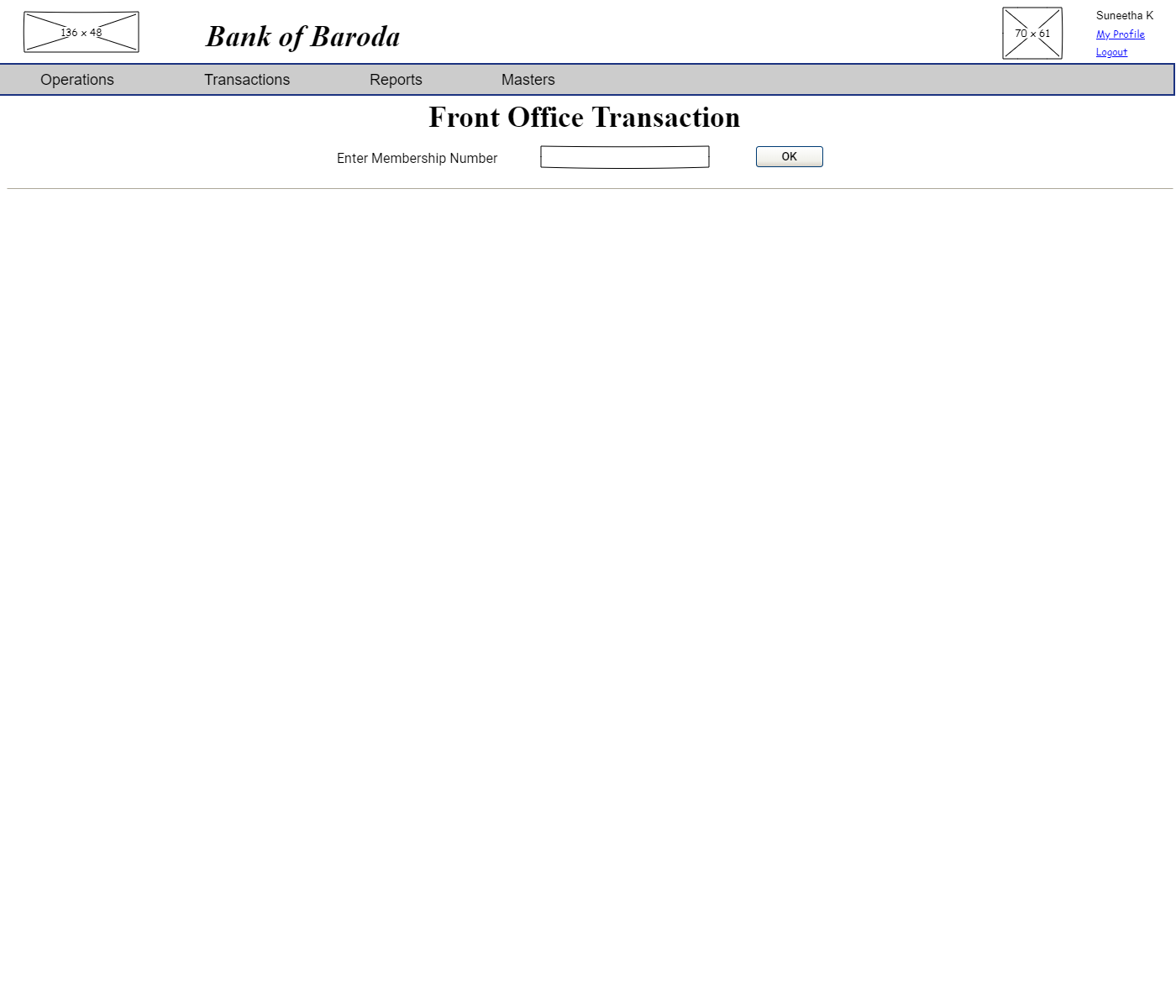
If the membership number is not avaliable, an error message "Member does not exist" will be displayed.

If the membership number is available the corresponding details of the member is displayed.
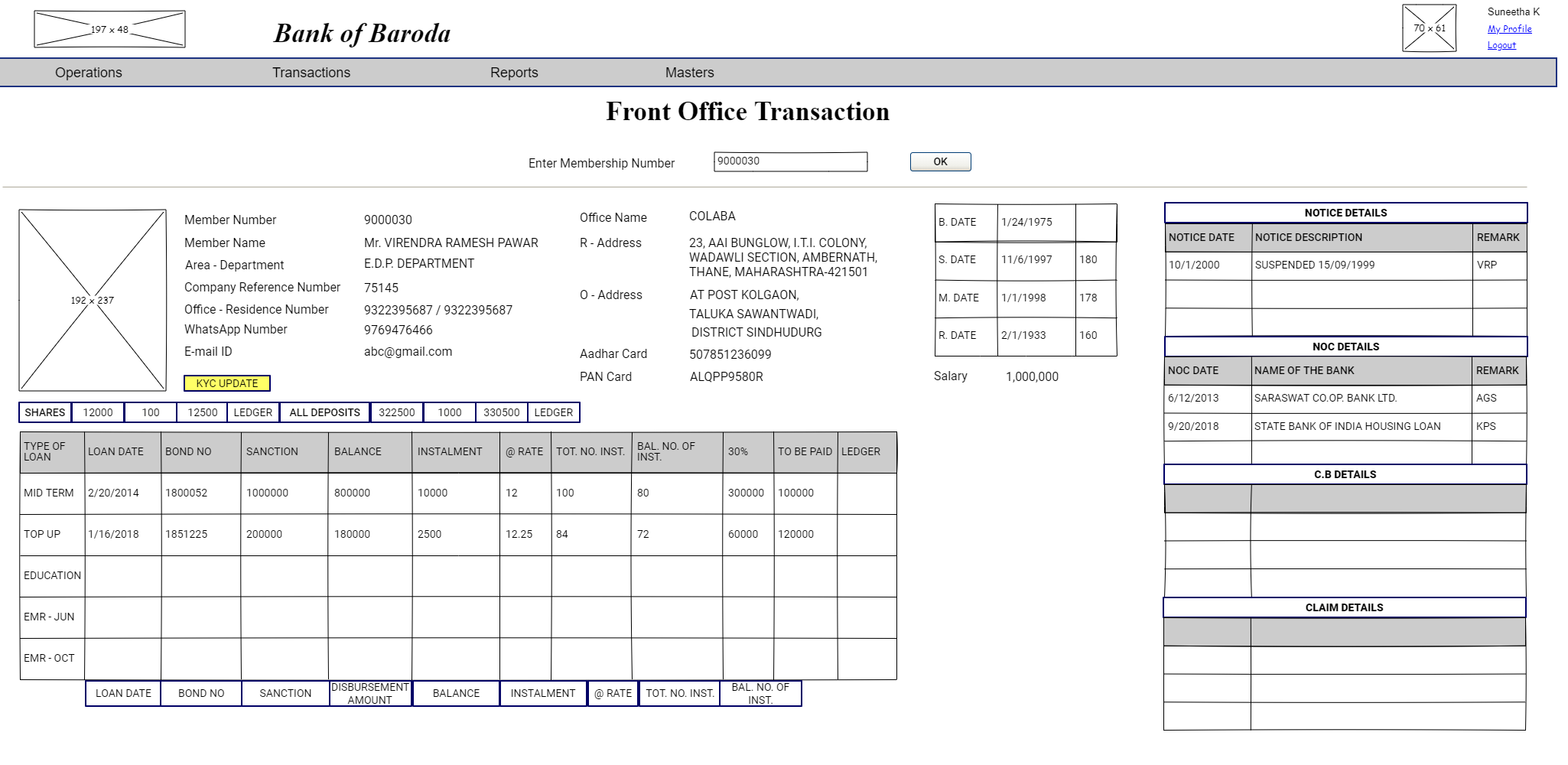
All the fields displayed have their respective labels as a hovering text. One sample of membership name is shown.
The filed are :
-
Photo from folio master.
-
Membership Number (Folio Number) picked from folio master.
-
Member Name (ACCINITIALS, ACCFNAME ,ACCMNAME ,ACCSNAME) picked from folio master.
-
Company Reference Number (COMPREFNO) picked from folio master.
-
Area and Department (RECOAREA and RECODEPTNM) picked from folio master.
-
Office Name (RECOOFFICENM) picked from folio master.
-
Residential address (all fields related to ADDRESSTYPE = "RESIDENTIAL" for the specific folio number / membership number) picked from folioaddress master.
-
Office address(all fields related to ADDRESSTYPE = "OFFICE" for the specific folio number / membership number) picked from folioaddress master.
-
Office / Residence Telephone Number (TELEPHONERESIDENCE and TELEPHONEOFFICE) picked from contact master.
-
WhatsApp Number (WHATSAPPINT) picked from contact master.
-
Email Address (EMAILID) picked from contact master.
-
Aadhaar Card number of member.
-
PAN Card number of member.
The following fields will be displayed as labels with border for better visibility -
-
KYC Update
-
Shares
- Share value at the begining of the year, picked from balance table
- Transaction Balance of shares Calculation : (Amount = credit - debit) which is picked from transaction table. This calculation is based from 1st April to current date.
- Closing balance of shares: (opening balance + transaction balance), picked from balance file. If the closing balance of shares is not matching as per calculation, then is displayed in 'red' colour.
- Ledger (of shares) : Picked from transaction table. On click of this field, all ledger entries with respect to shares are seen.
- All Deposits
- Opening Balance of deposits : Opening balance of all deposits , picked from balance table
- Transaction balance of deposits : (Amount = credit - debit), picked form the transaction table
- Closing balance of deposits : (opening balance + transaction balance), picked from balance file. If the closing balance of deposits is not matching as per calculation, then is displayed in 'red' colour.
- Ledger (of deposits) : Picked from transaction table. On click of this field, all ledger entries with respect to deposits are seen.
- Notice Details
- NOC Details
- C.B Details
- Claim Details
Type of Loan : all details of all types of loan taken are displayed individually row wise.
The dates and their caculation displayed as follows :
-
B. Date : DOB picked from folio master.
-
S. Date : MEMDATE picked from folio master.
-
M. Date : JOD picked from folio master.
-
R. Date : RETIREDATE picked from folio master.
-
Next to S.Date, months completed in society is diaplayed (current date - S.Date).
-
Next to M. Date, months completed in company (current date - M.Date)
-
Next to R. Date, months left for retirement (retirement date - curernt date)
Notice details picked from Company.
NOC details from Banks.
C.B Details
Claim Details