Roles Master Wireframes
Role List
The 'Roles' link from the Masters view screen takes one to the list of roles corresponding to that bank which are mapped with their reponsibilities.
Role View
User story reference: U0403
You can view the roles and their respective responsibilities.
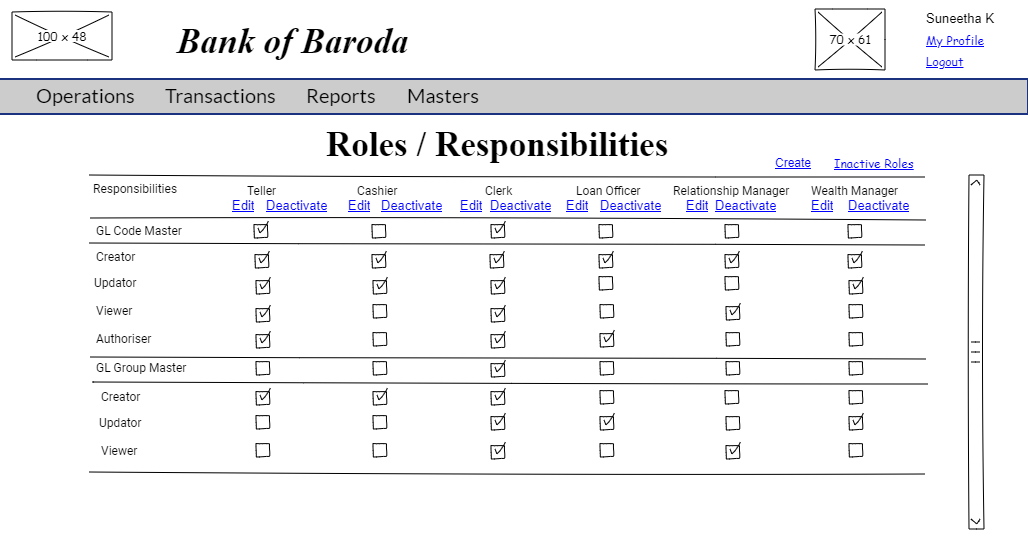
NOTE : All the checkboxes shown for each responsibility are disabled.
Role Edit
User story reference: U0402
The Edit link in the Role List allows you to edit the role name. By clicking that, you receive an input box. Write the modified role name. By clicking the "OK" button, the role is updated. You are redirected to role list page with the updated role name.

Role Create
User story reference: U0401
Note that there is a create link on the role master page. By clicking that, you will be taken to role create page.You will enter the new role name to be created.You have an option to create new role from the existing roles. By clicking on "Yes", list of existing roles will be displayed. You select the role as required. By clicking on "No" , list of existing roles will not be displayed.
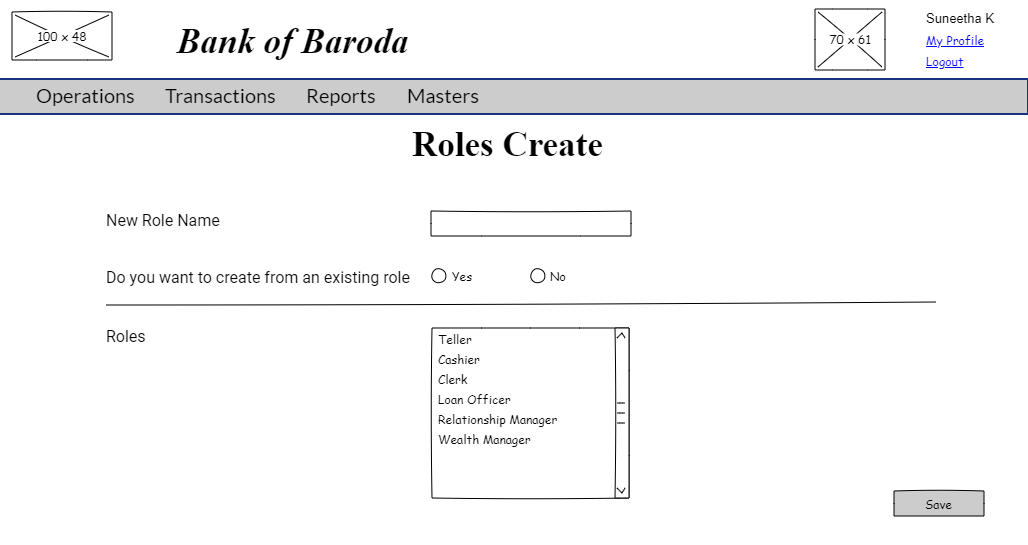
By clicking the "Save" button, a new role is created. You are redirected to role list page with an information message.
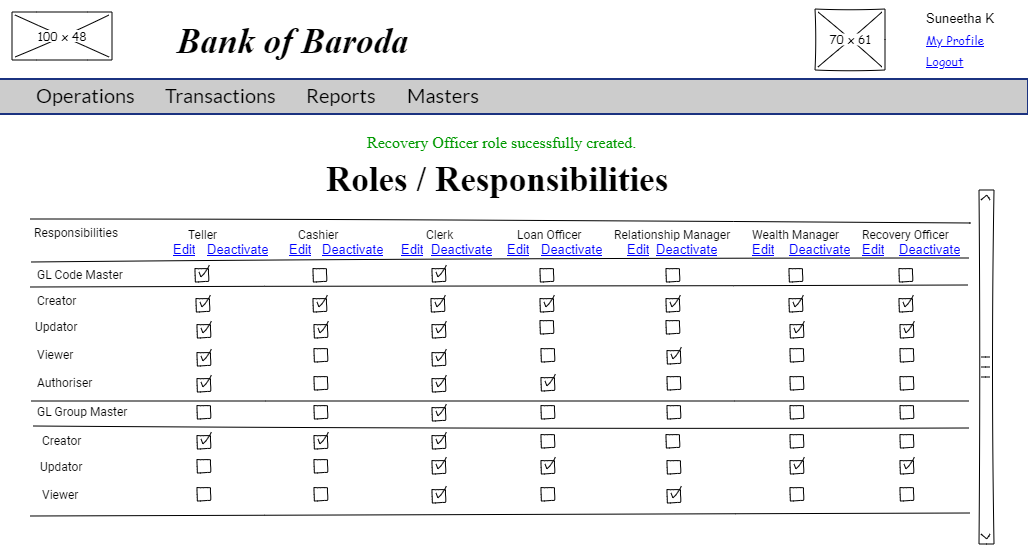
You can further modify the repsonsibilities to be assgined to the new role by clicking on the edit button of the specified role.
Role Activate
User story reference: U0404
The "Inactive Roles" link on the Role List page is visible only to the user with the responsibility to re-activate the users. By clicking that, you are taken to the list of inactive roles.
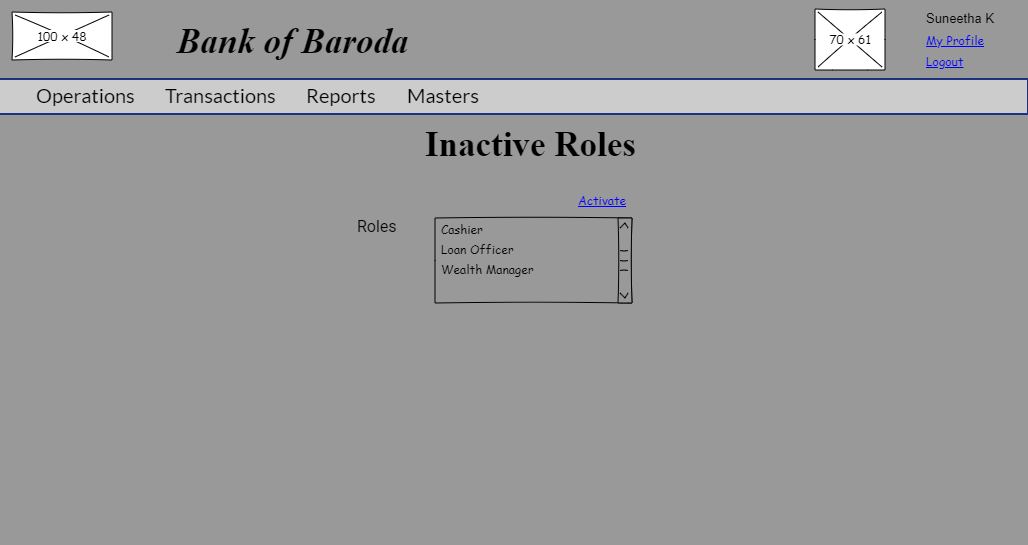
Select the role to be activated from the list of roles. A confirmation dialog box is dispalyed that asks whether to re-activate the given role.The role gets reactivated after the confirmation.
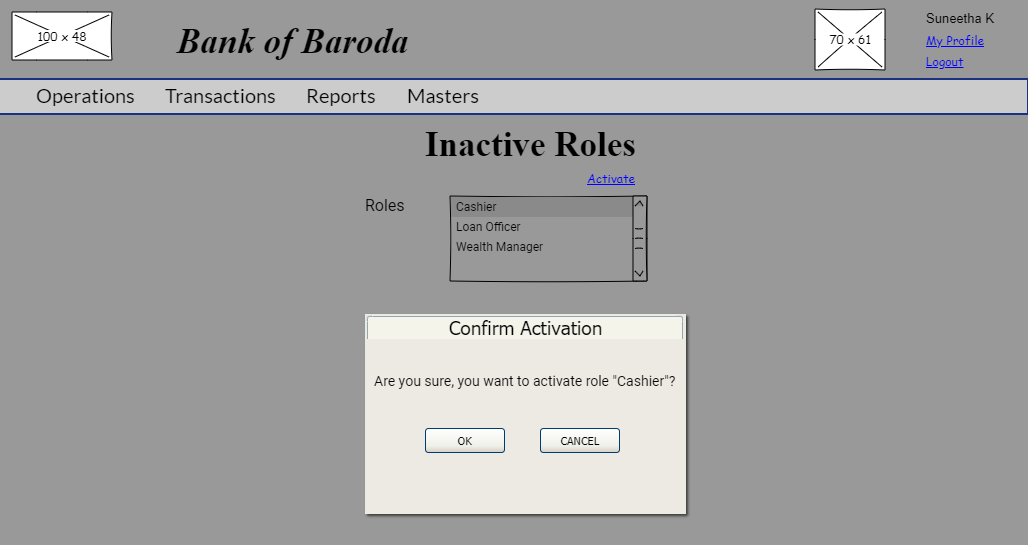
By clicking click "OK" button, the role gets activated and you are redirected to Role List page.
Role Deactivate
User story reference: U0404
Click the "Deactivate" link from Role List page for a specific role.
By clicking the "Deactive" link, a input box will be displayed.
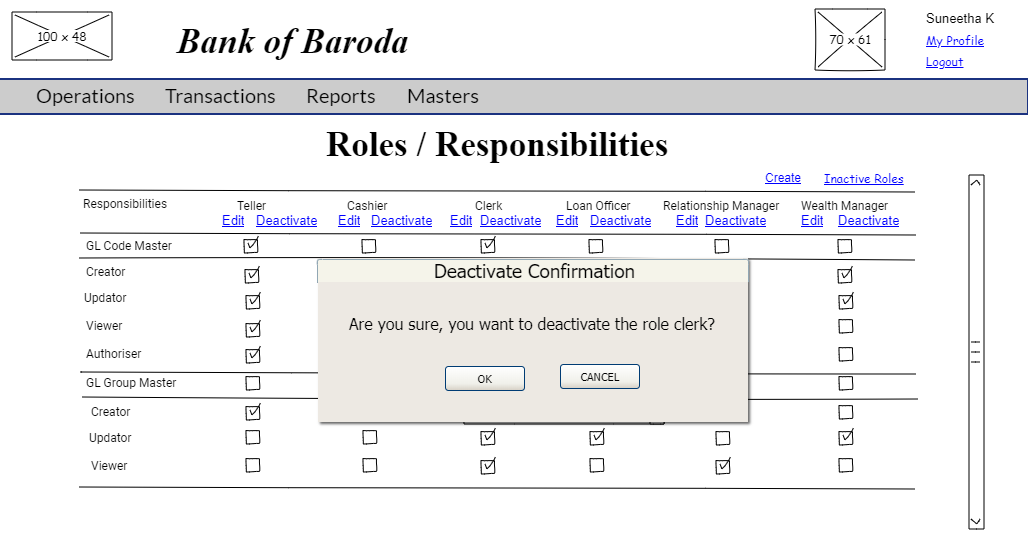
By clicking "OK" button, the role gets deactivated and you will be redirected to inactive roles view page.