Folio Address Master Wireframes
Folio Address View
User story reference: U3803
The "Address" link from the Folio View Screen takes one to list of addresses of the respective folio(member). We have used an accordion, whose first section will be open by default.
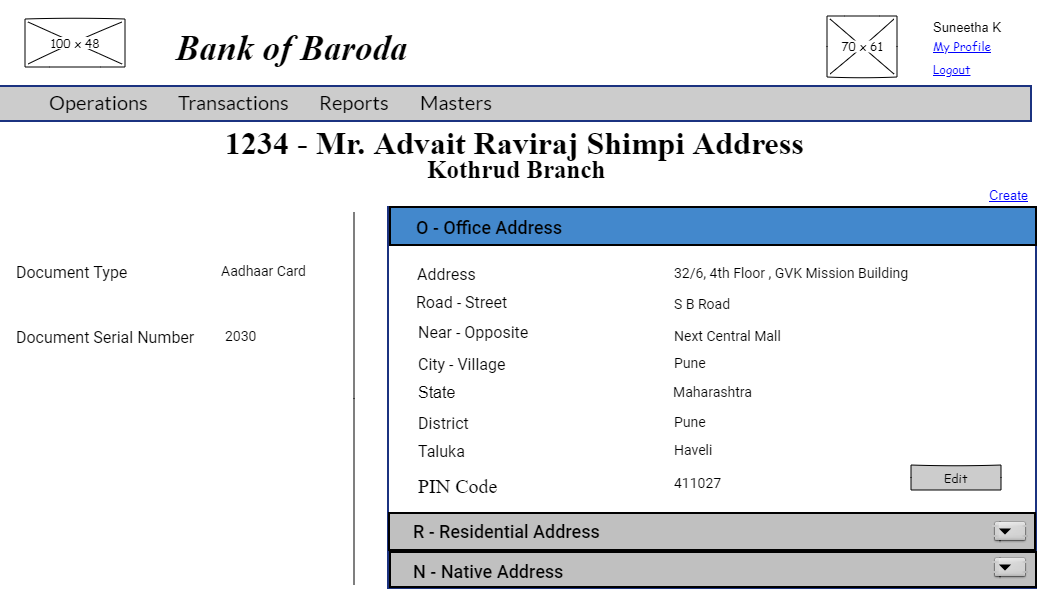
You may then open other sections by clicking on them. Here is the second tab to view member's residential address details.
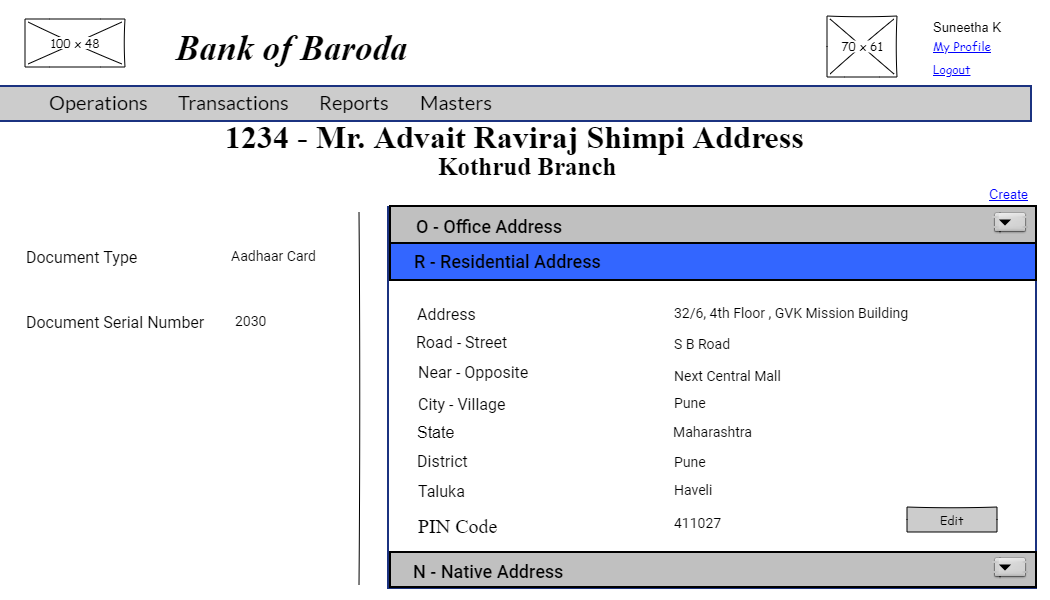
And here is the third one to view member's native address details.

*Note - In folio address view page all address type (office, residential, native) will be shown in respective accordians else only avialable address types will be shown.
Incase there are multiple addresses for the same address type, then, all address will be shown in different accordians.*
Folio Address Edit
User story reference: U3802
Note that there is an edit button in front of each section in the view page. By clicking that, you will be able to edit that section.
Here is the UI to edit the member office address details.

Here is the UI to edit the member residential address details.
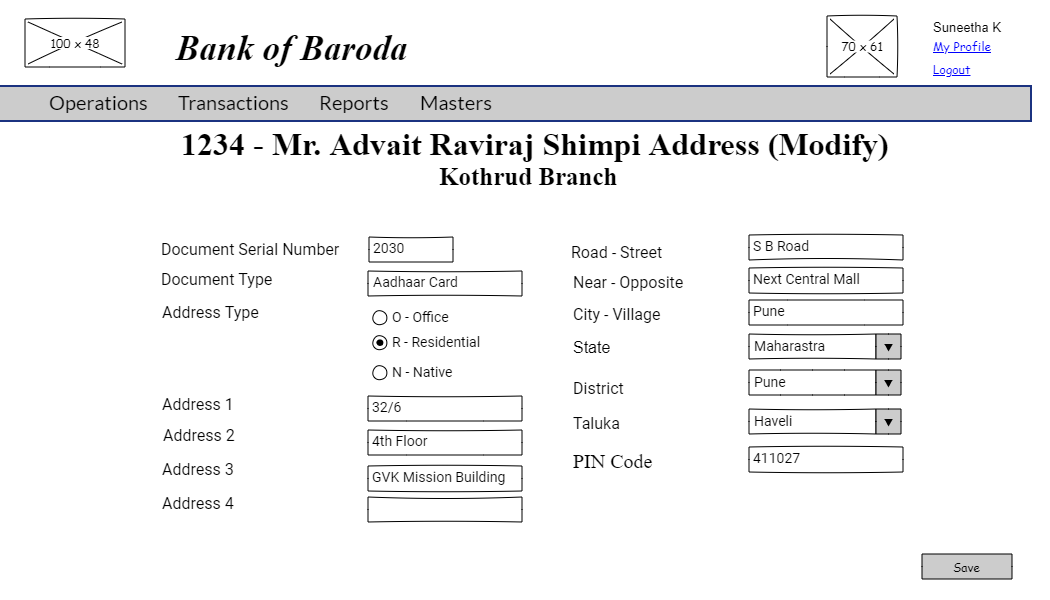
And here is the UI to edit member native details.
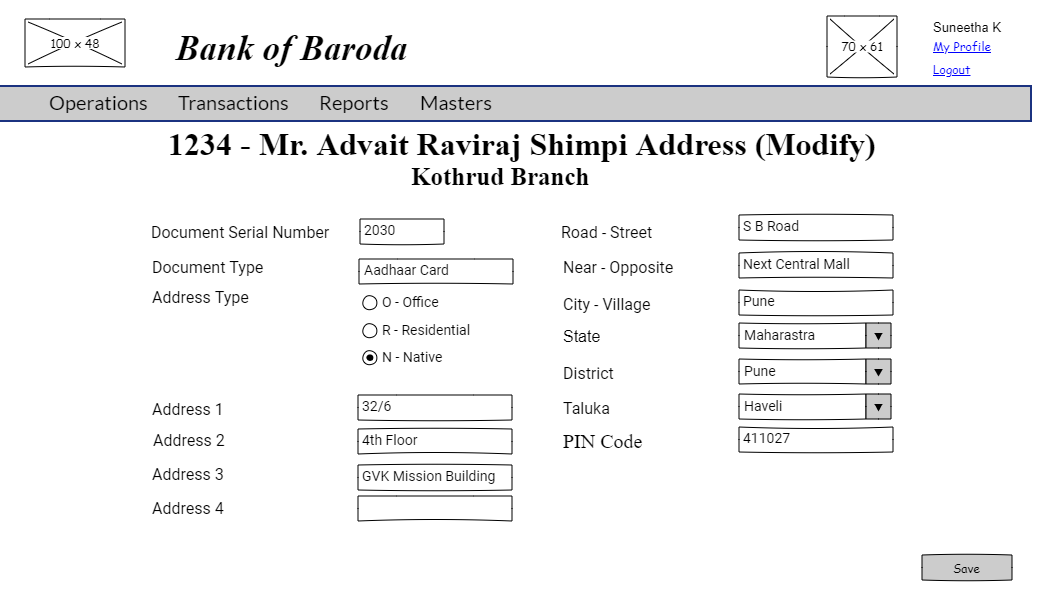
By clicking the "Save" button, the folio address details are modified. The modified folio address details goes through approval process.
*Note - The above edit process is used for all address types available for a folio(member).*
For the member number, where only one address is available, you can click on the respective edit link of the particular member address.
Folio Address Create
User story reference: U3801
Note that there is a create link on the folio address list.By clicking that, you are taken to folio address create page. Here is the UI to enter new folio address details.
Note : Since folio address is accessed through folio master screen, folio number, folio name details and branch has to be taken directly from folio master.
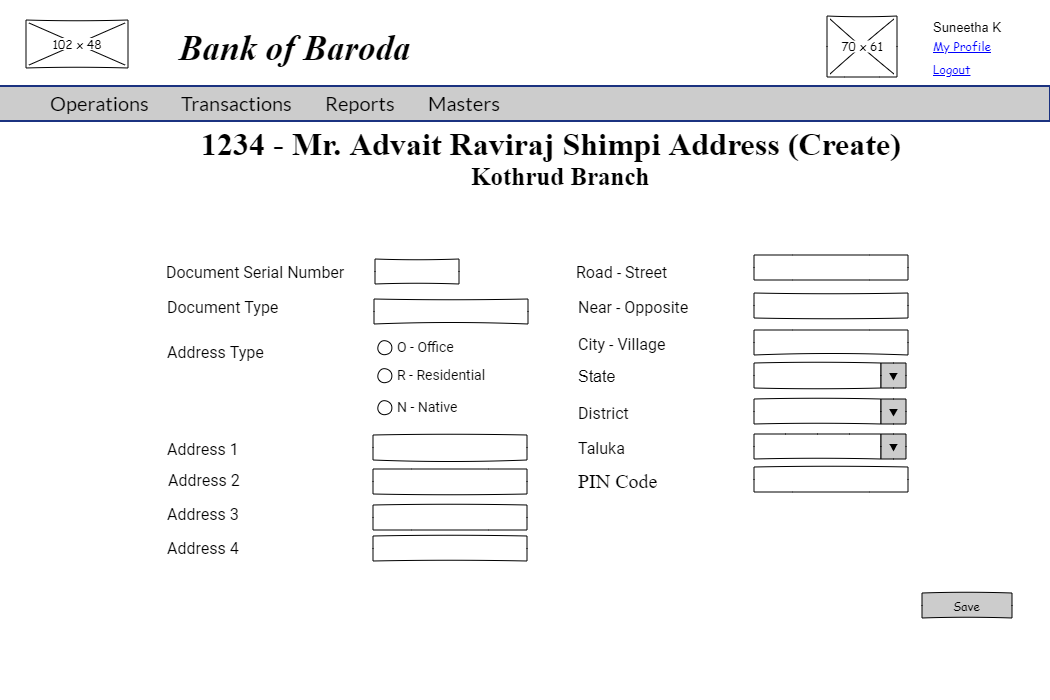
By clicking the "Save" button, a new address is created and a confirmation box appears asking "Any more addresses to be created ?".
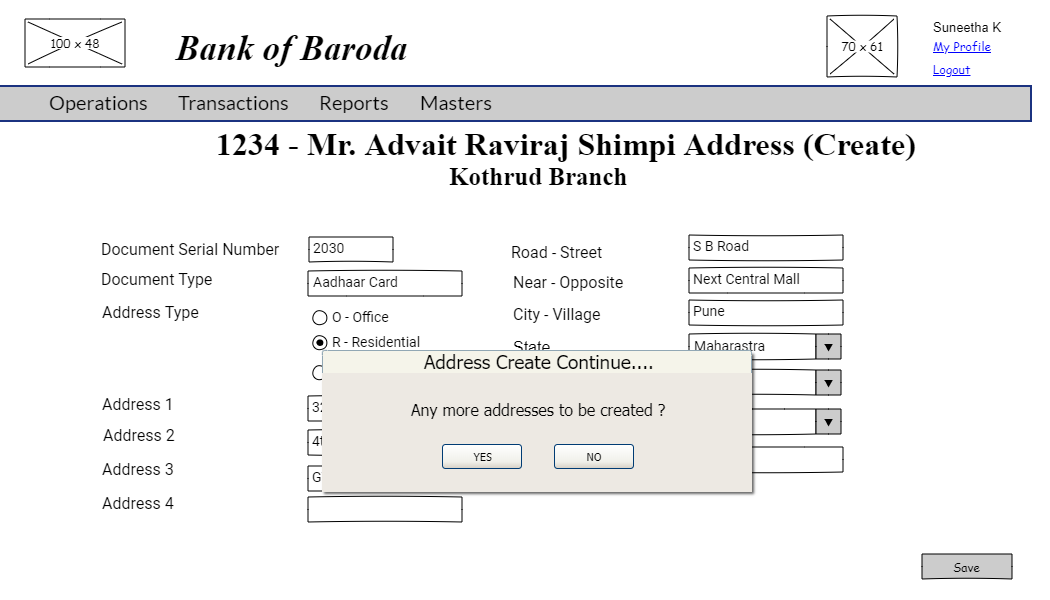
By clicking "YES", you are redirected to folio address create.
By clicking "NO", all created new folio addresses go through approval process.
Note : While modify or create, first the state is selected from drop downlist. Accordingly all the districts, specific to that particular state is populated in "district drop down list box". Next the district is selected from drop down list box. Accordingly all the talukas, specific to that particular district is populated in "taluka drop down list box". Required taluka is selected from taluka drop downlist box.
Folio Address Change Approval
User story reference: U3804
The approval task list will be visibe only to the user with responsibility to authorise a folio address change. By clicking that you are taken to the list of tasks pending for approval.
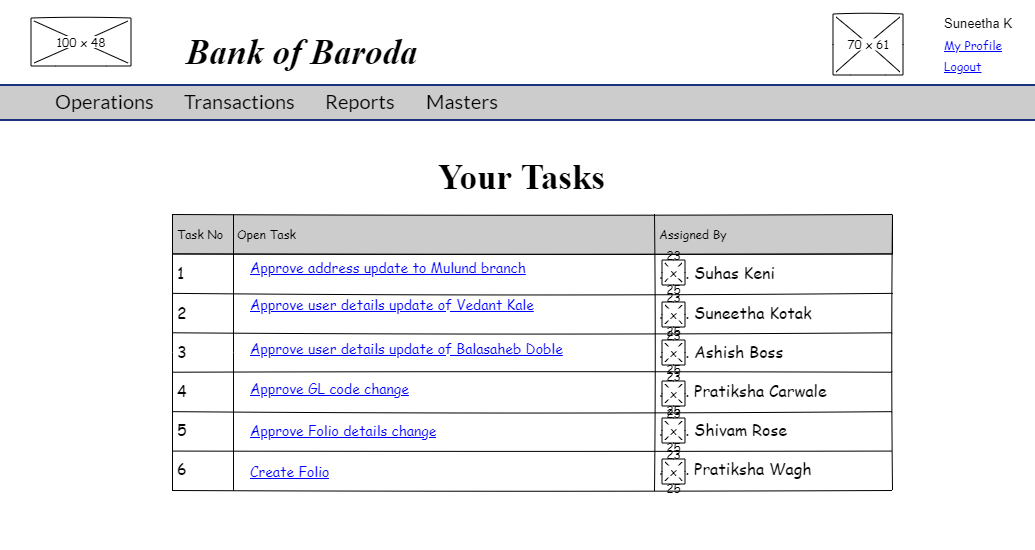
When clicked on a particular task, you will be directed to approve folio address page.
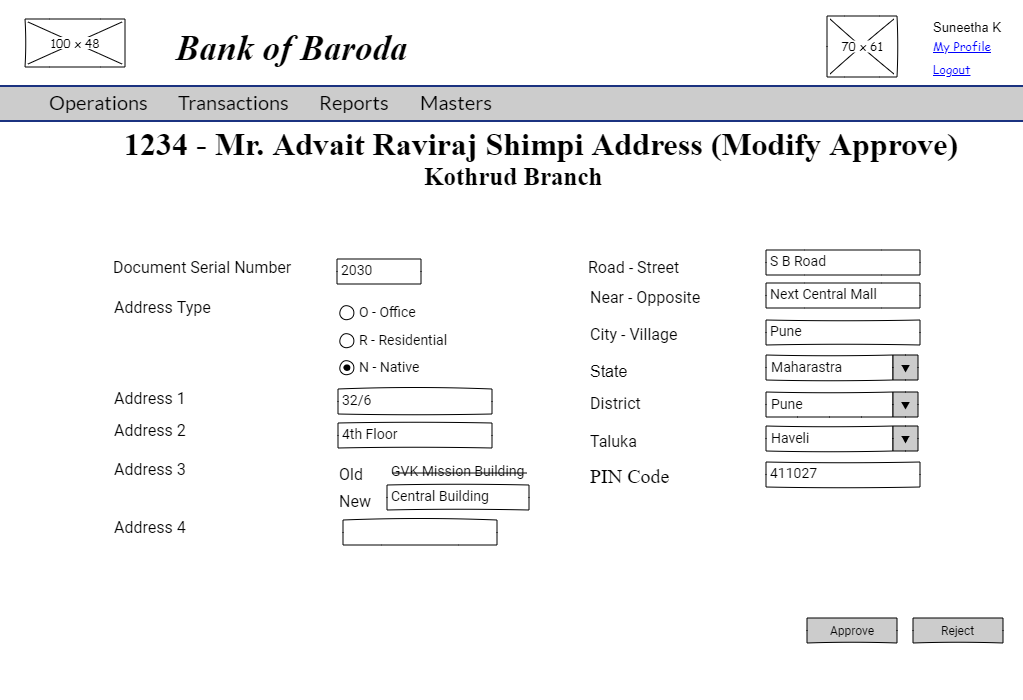
You review the folio address change details and click on "Approve" or " Reject" button as required.
If "Approve" button is clicked, the folio address change will be saved with an information message and you are redicrected to approval task list page.

If "Reject" button is clicked, the folio address change will not be saved with an information message and you are redirected to approval task list page.

Please refer to edit approve screen validations.
Folio Address Create Approval
User story reference: U3804
When clicked on a particular task, you are directed to approve create folio page.

If "Approve" button is clicked, the folio address created is saved. You are redicrected to approval task list page with a information message.
If "Reject" button is clicked, the folio address created is not saved. You are redicrected to approval task list page with a information message.
Please refer to create approve screen validations.
Please refer to approval workflow validations.