Nomination Master Wireframes
Nomination List
User story refrence:U4303
The "Nomination" link from the folio view screen takes one to list of contacts of the respective folio(member).
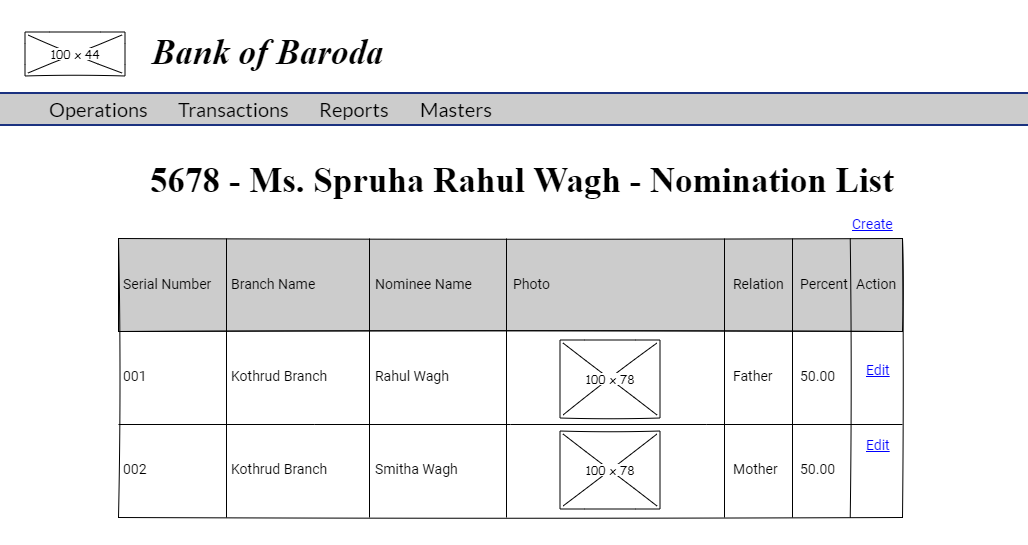
If no nomination details are available, the below UI is displayed with an information message.
Please refer to image validation validations.

Nomination Edit
User story referance:U4302
By clicking the Edit link in the nomination view you are directed to nomination edit page. Enter the modified nomination details.

By clicking the "Save" button, modified nomination details are saved. The modified nomination details goes through approval process.
Nomination Create
User story referance:U4301
Note that there is a create link on the nomination list page.By clicking that, you are directed to the nomination create page. Write the new nomination details. Here is the UI to enter new nomination details.
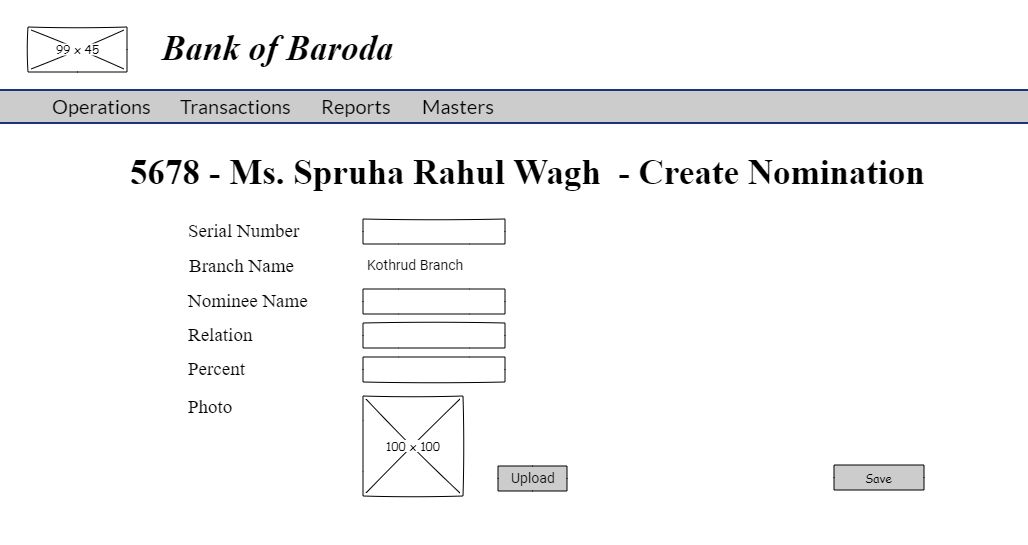
By clicking the "Save" button, a new nomination is created and a confirmation box appears asking "Any more nominations to be created ?".

By clicking "YES", you are redirected to nomination create.
By clicking "NO", all nominations created so far go through approval process.
Nomination Change Approval
User story reference:U4304
The approval task list will be visibe only to the user with responsibility to authorise a nomination detail change. By clicking that you are taken to the list of tasks pending for approval.
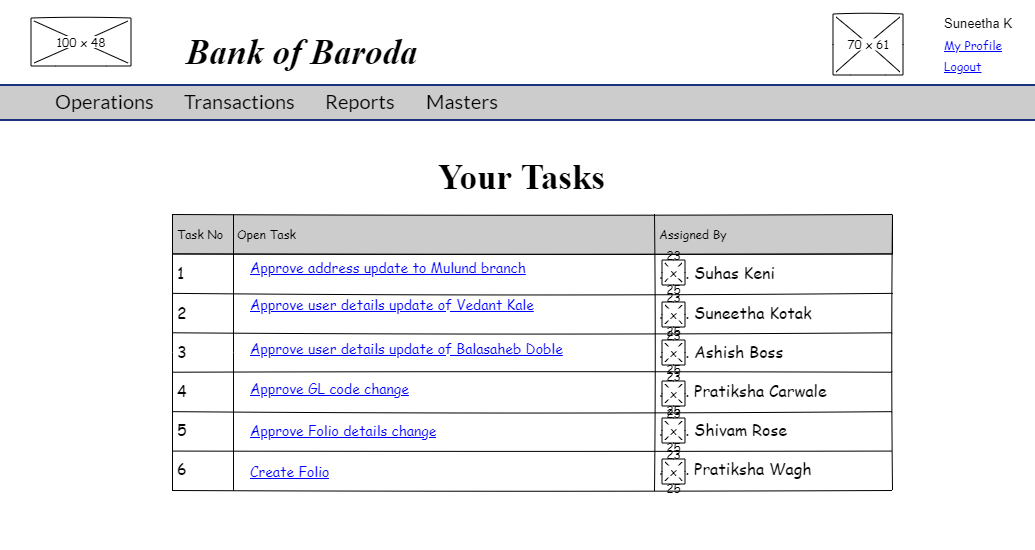
When clicked on a particular task, you will be directed to approve nomination page.
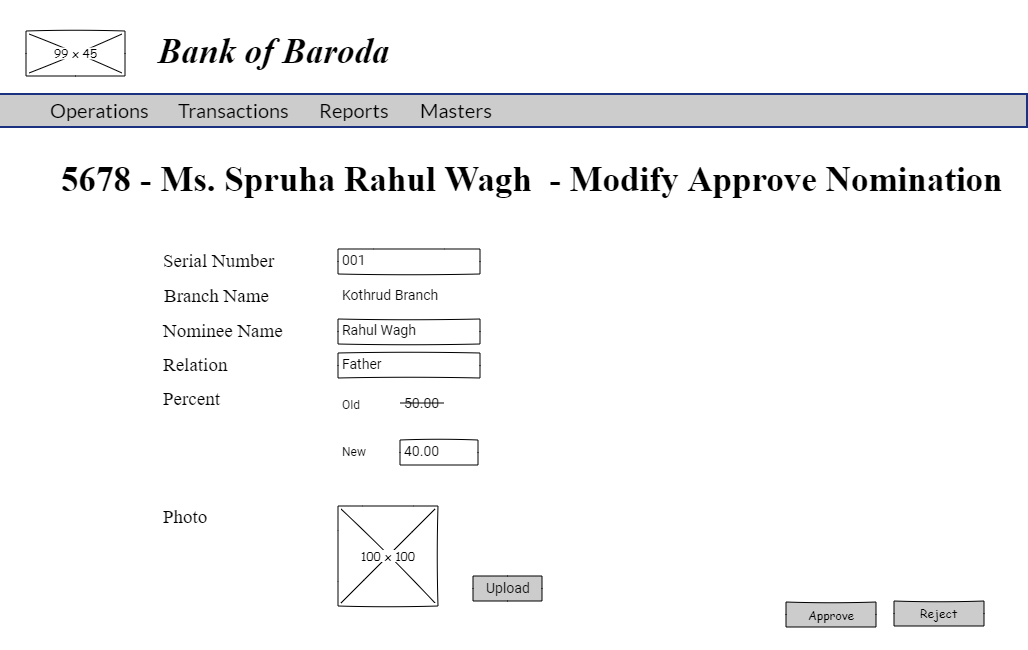
You review the nomination details change and click on "Approve" or " Reject" button as required.
If "Approve" button is clicked, the nomination detail change will be saved with an information message and you are redicrected to approval task list page.

If "Reject" button is clicked, the nomination detail change will not be saved with an information message and you will be redirected to approval task list page.

Please refer to edit approve screen validations.
Nomination Create Approval
User story reference: U4304
When clicked on a particular task, you are directed to approve create nomination page.
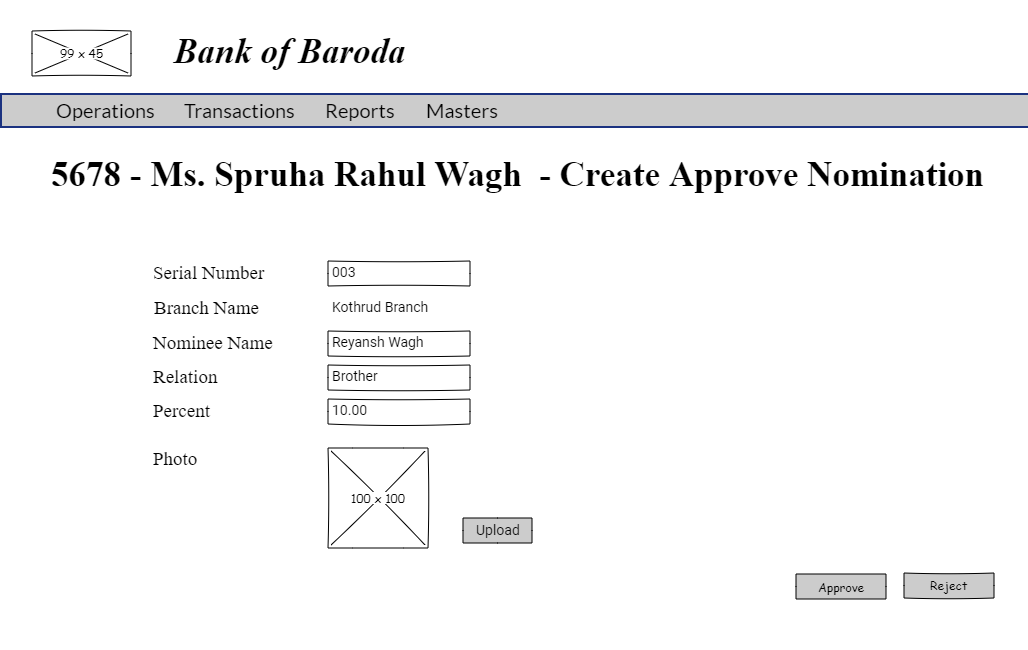
If "Approve" button is clicked, the nomination created is saved. You are redirected to approval task list page with an information message.
If "Reject" button is clicked, the nomination created is not saved. You are redicrected to approval task list page with an information message.
Please refer to create approve screen validations.
Please refer to approval workflow validations.