Branch Master Wireframes
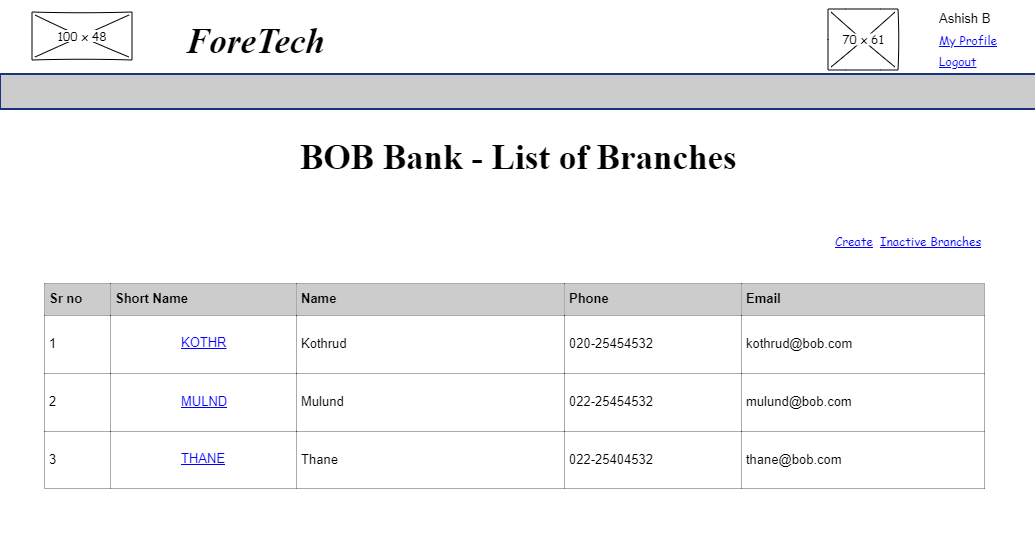
Branch List
The 'Branches' link from the Bank view screen takes one to the list of branches corresponding to that bank.
Branch View
User story reference: U0203
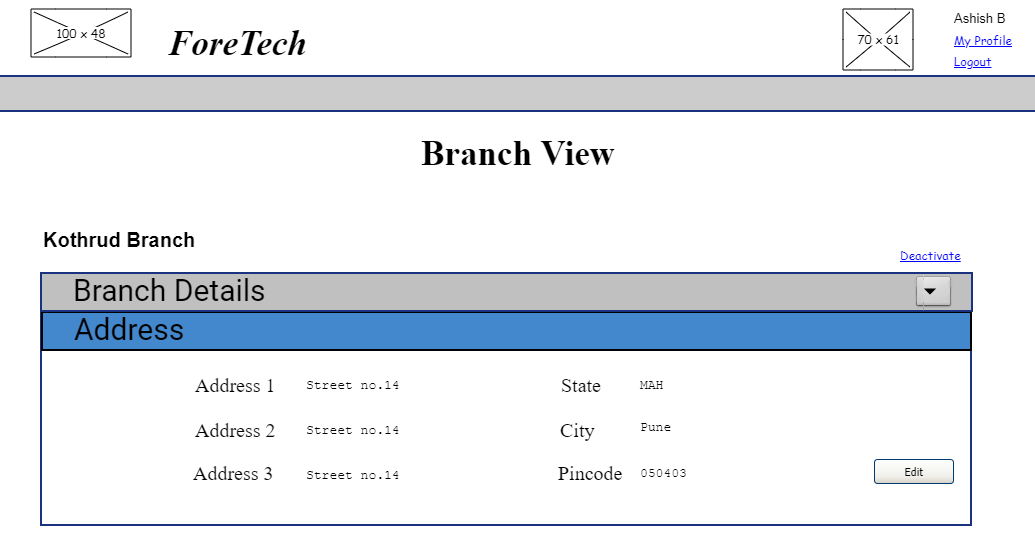
When you click the link corresponding to a branch in the Branch list screen,you come to the branch view screen.It shows an accordian, similar to the Bank view.

Here is the view with the address tab open.
Branch Edit
User story reference: U0202
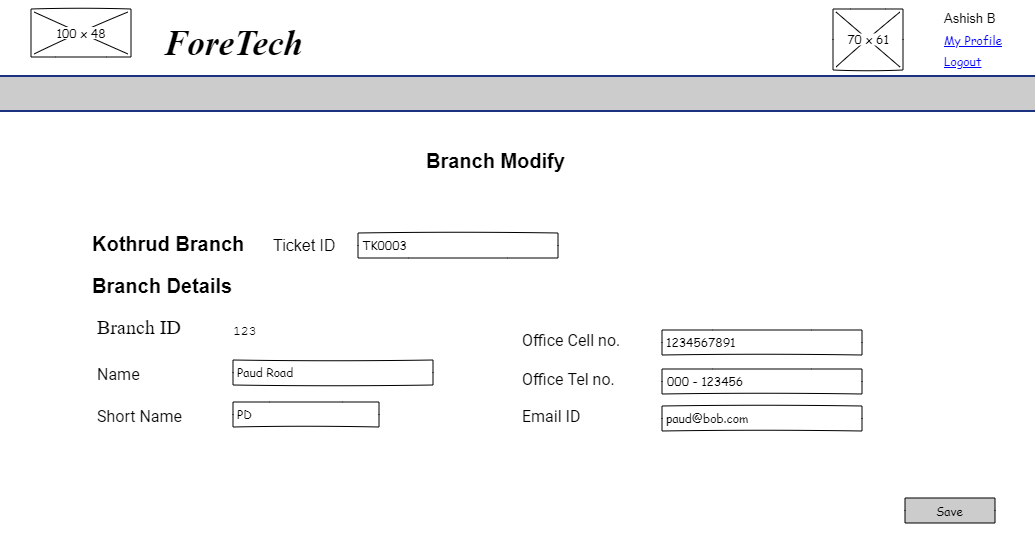
The Edit button in the Branch view brings you to the screen that lets you edit the given section.
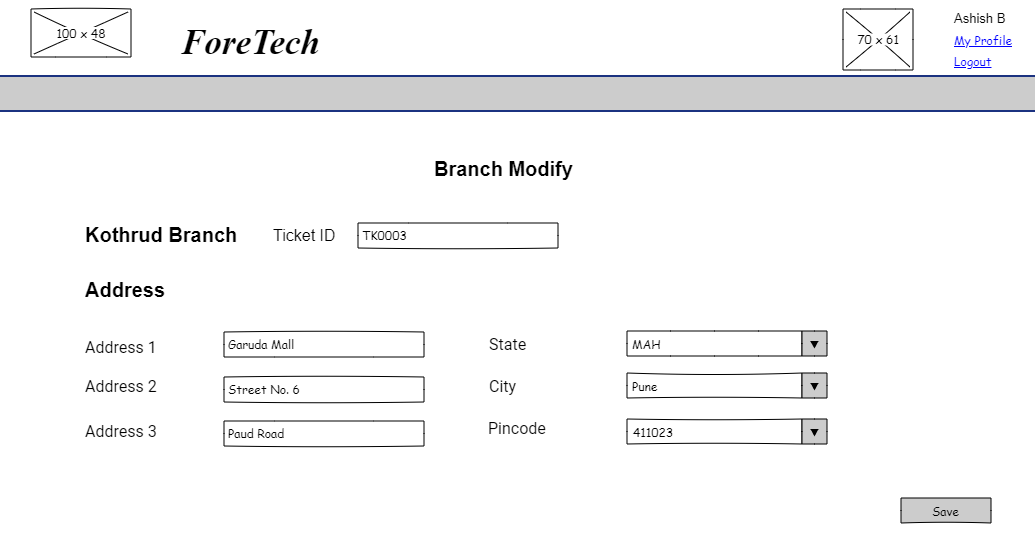
Here is the UI to edit the address
Branch Create
User story reference: U0201
Note that there is a create link on the branch master page. By clicking that, you will be taken to branch create step1 page. Here is the UI to enter new branch details.
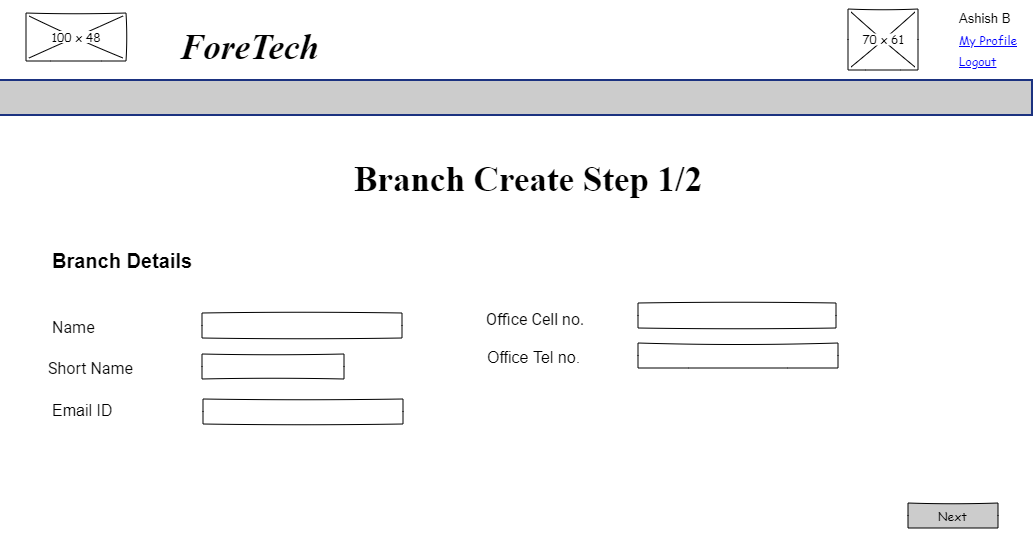
By clicking on "Next" button on branch create step1 page, you will be taken to branch create step2 page. You will be able to enter address details. Here is the UI to enter address.
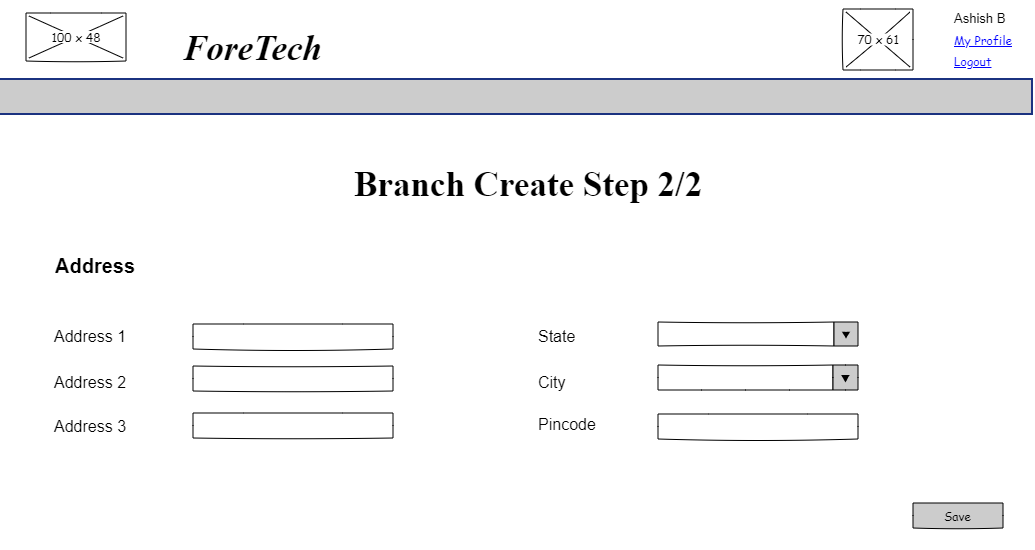
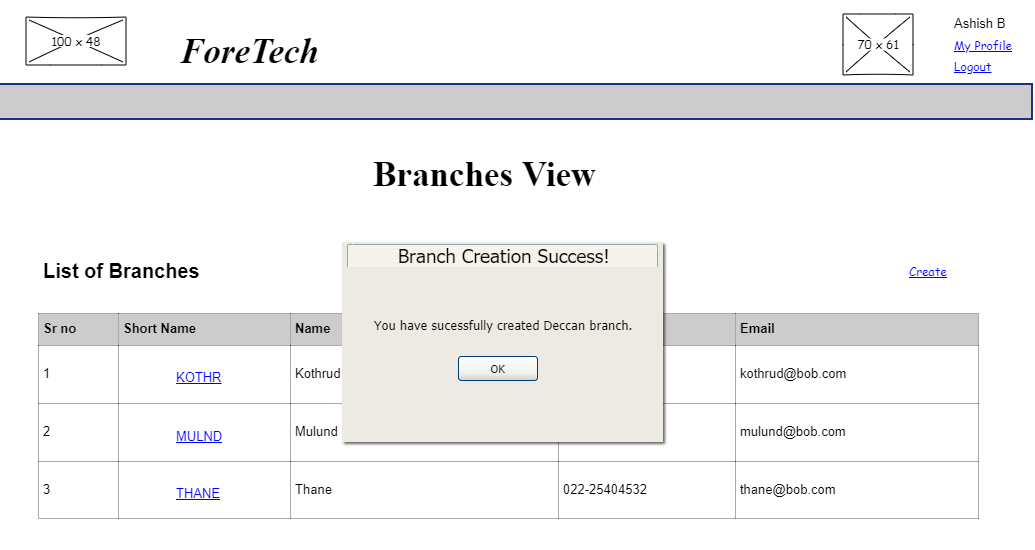
By clicking the "Save" button, a new bank is created. You will be redirected to bank list page with a information message.
Branch Activate
User story reference: U0204
The "Inactive Branches" link on the branch list page is visible only to the user with the responsibility to re-activate the branches. By clicking that, you are taken to the list of inactive banks.

When you click a branch, you see the inactive branch's view page.
 Here you will see an option to reactivate the branch.
When you click that, a confirmation dialog will be presented that asks whether to re-activate the given branch. The branch gets reactivated after the confirmation.
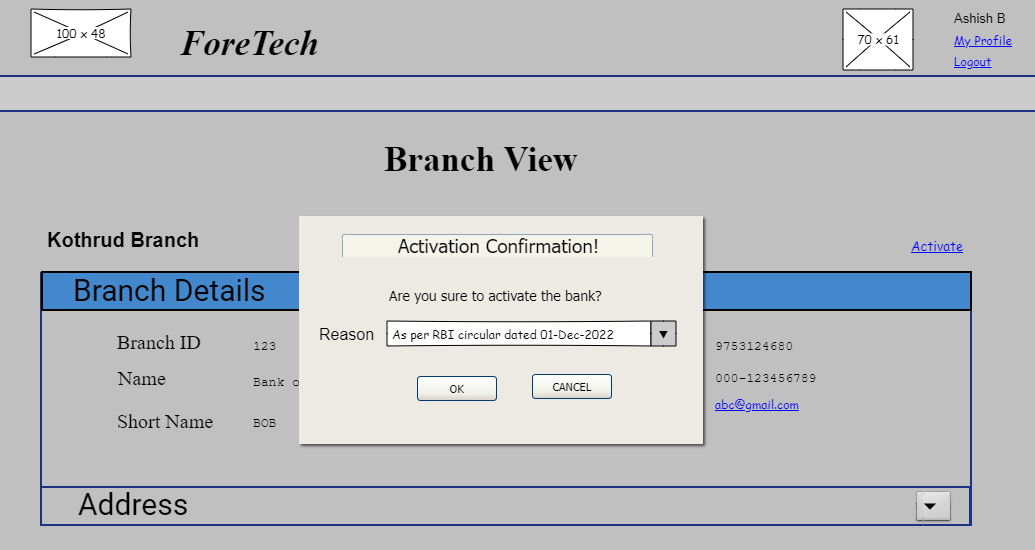
When you click on "OK" button, the branch gets activated and you are redirected to active branch's view page.
Branch Deactivate
User story reference: U0204
Click the "Deactivate" link from an active branch's list page.
After user confirmation dialog, the branch then becomes inactive (deactivated).
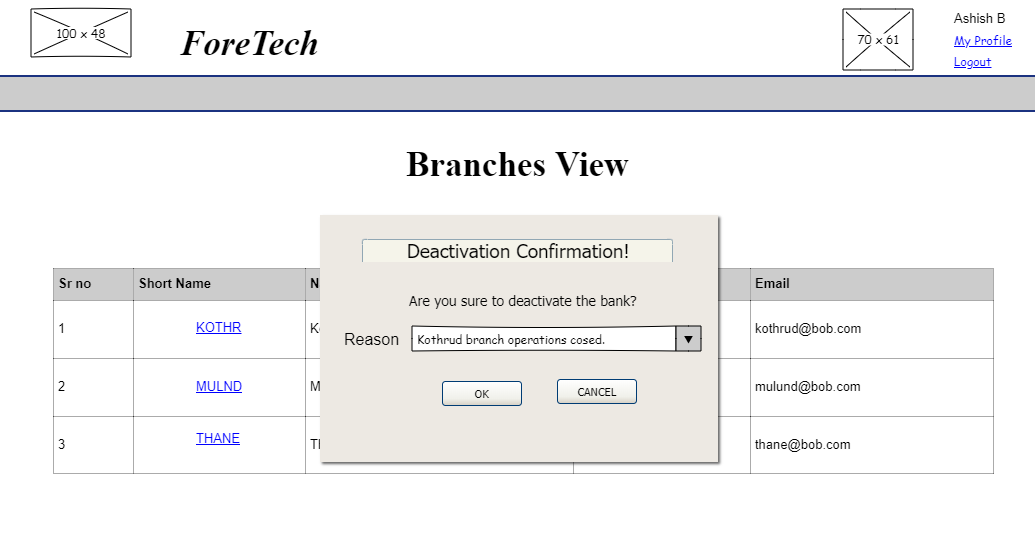
When you click on "OK" button, the branch gets deactivated and you will be redirected to inactive branches view page.