Deposit Scheme Master Wireframes
Deposit Scheme List
The 'Deposit Scheme' link from the Masters view screen takes one to the list of users corresponding to that bank.

Deposit Scheme View
User story reference: U2603
Click a deposit scheme, and you see the deposit scheme's page. We have used an accordion, whose first section will be open by default.
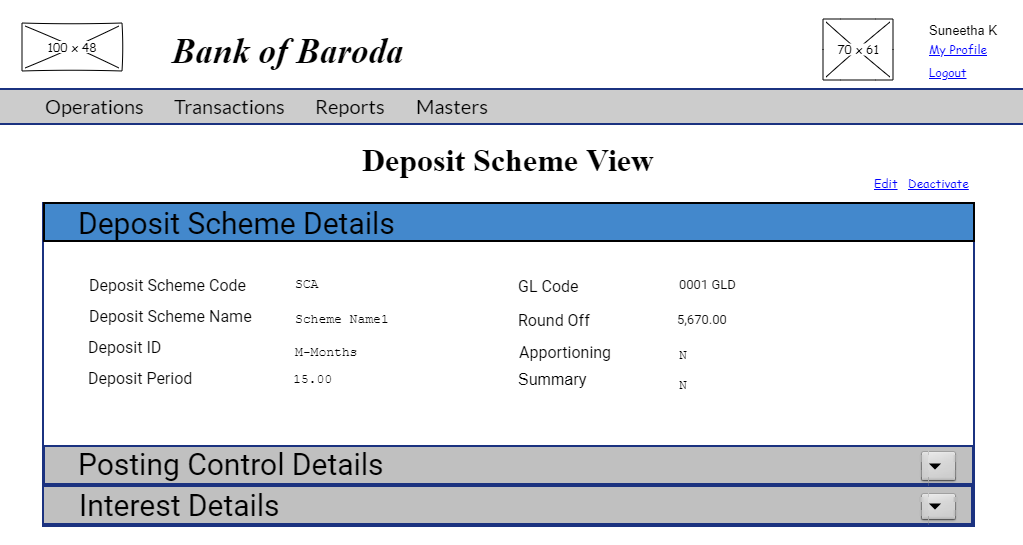
You may then open other sections by clicking on them. Here is the second tab to see the posting control details.

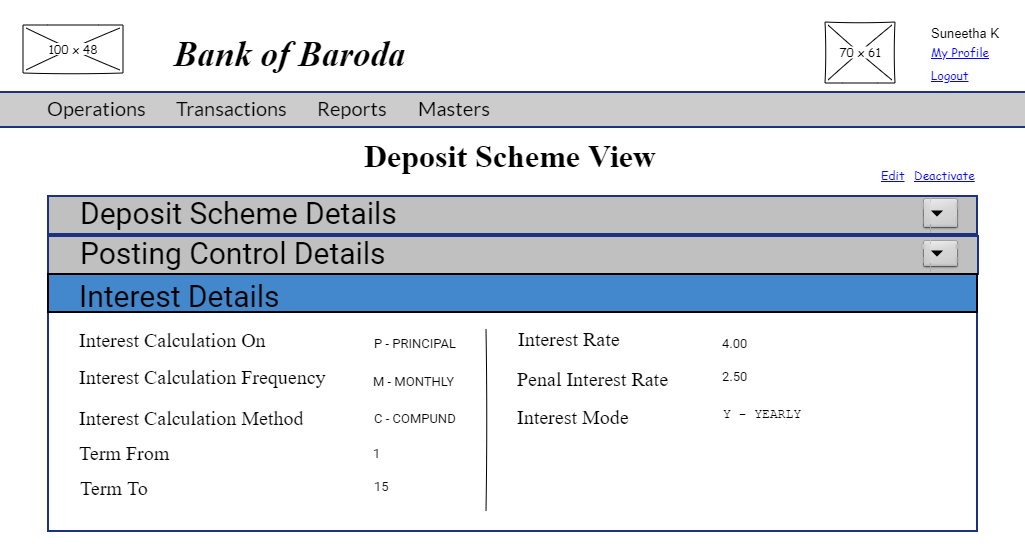
And here is the third one to view the interest details of deposit scheme.
Deposit Scheme Edit
User story reference: U2602
Note that there is an edit link in the view page. By clicking that, you will be able to edit.
Here is the UI to edit the deposit scheme details.
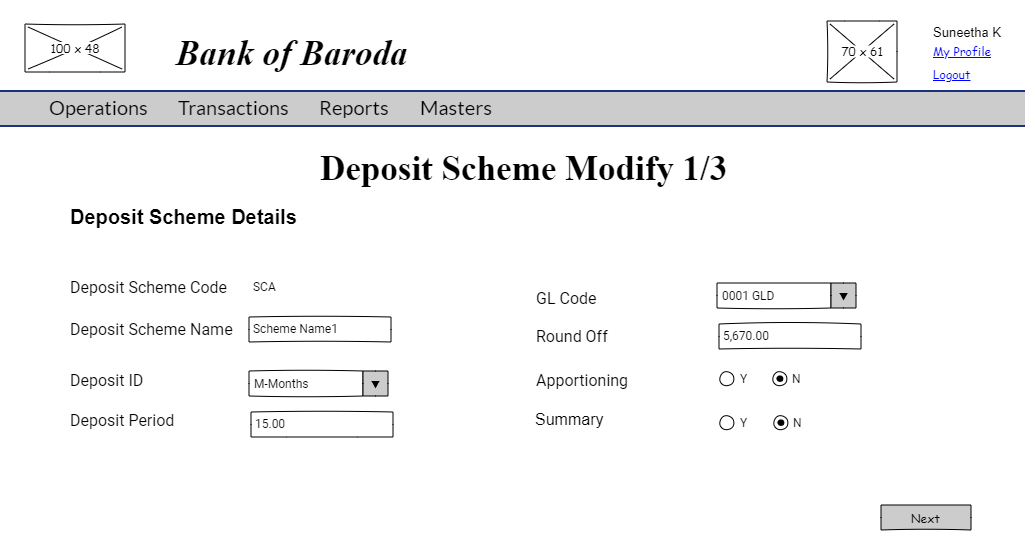
By clicking on the "Next" button, you are directed to posting control details.
Here is the UI to edit the posting control details.

By clicking on the "Next" button, you are directed to interest details.
And here is the UI to edit the interest details of deposit scheme.

NOTE :
* Interest Rate and Penal Interest Rate fields should have data in the range of >= 0 to <=100.
* 'Term From' and 'Term To' fields should have data in the range of >=0 to <= 30
By clicking the "Save" button, the deposit scheme is modified. The deposit scheme, modified goes through approval process.
Deposit Scheme Create
User story reference: U2601
Note that there is a create link on the deposit scheme master page.By clicking that, you will be taken to deposit scheme create step1 page. Here is the UI to enter new deposit scheme details.
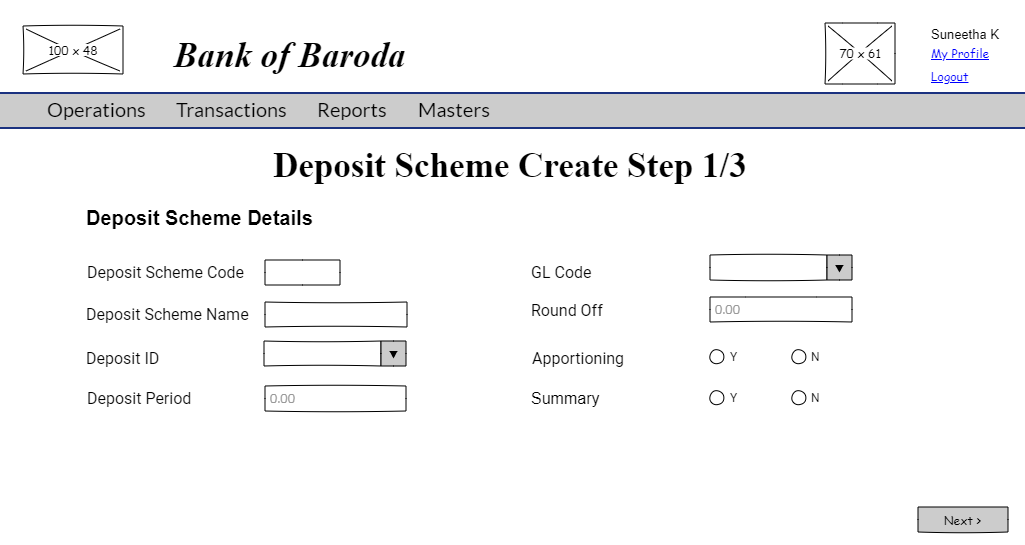
By clicking on "Next" button on deposit scheme create step1 page, you will be taken to deposit scheme create step2 page. You will be able to enter posting control details.Here is the UI to enter posting control details.
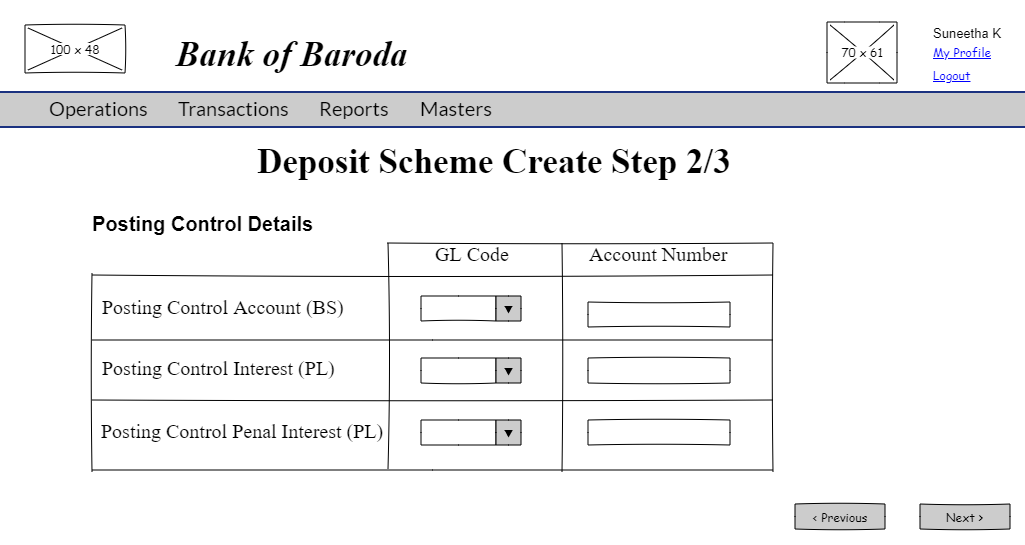
By clicking on "Next" button on deposit scheme create step2 page, you will be taken to deposit scheme create step3 page. You will be able to enter interest details of deposit scheme.

NOTE :
* Interest Rate and Penal Interest Rate fields should have data in the range of >= 0 to <=100.
* Term From and Term To fields should have data in the range of >= 0 to <= 30
By clicking the "Save" button, a new deposit scheme is created. The new deposit scheme created goes through approval process.
Deposit Scheme Activate
User story reference: U2604
The "Inactive" link on the Deposit scheme list is visible only to the user with the responsibility to re-activate the deposit scheme.By clicking that, you are taken to the list of inactive deposit schemes.
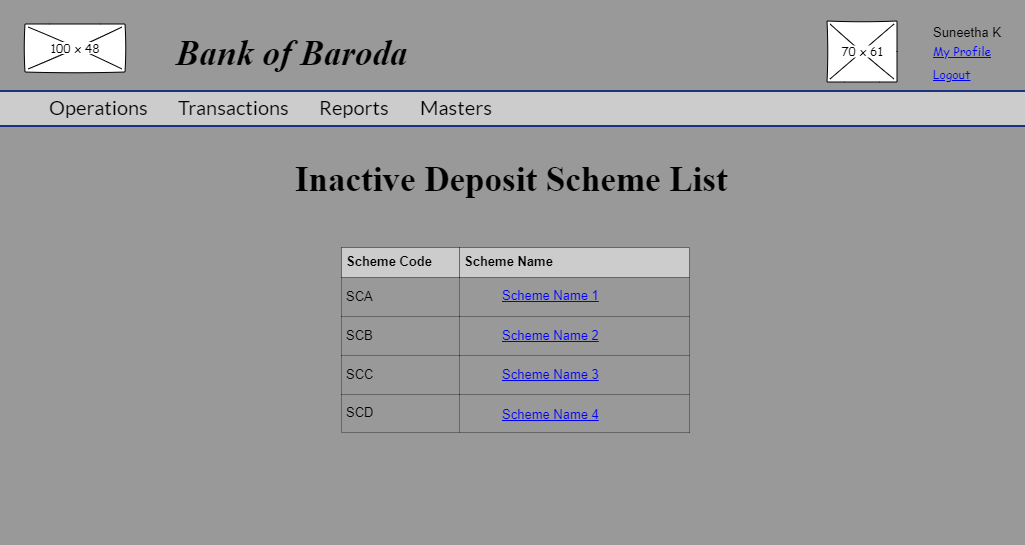
When you click a scheme, you see the inactive deposit scheme view page.
 Here you will see an option to reactivate the deposit scheme.
When you click that, a confirmation dialog will be presented that asks whether to re-activate the given deposit scheme. The deposit scheme gets reactivated after the confirmation.
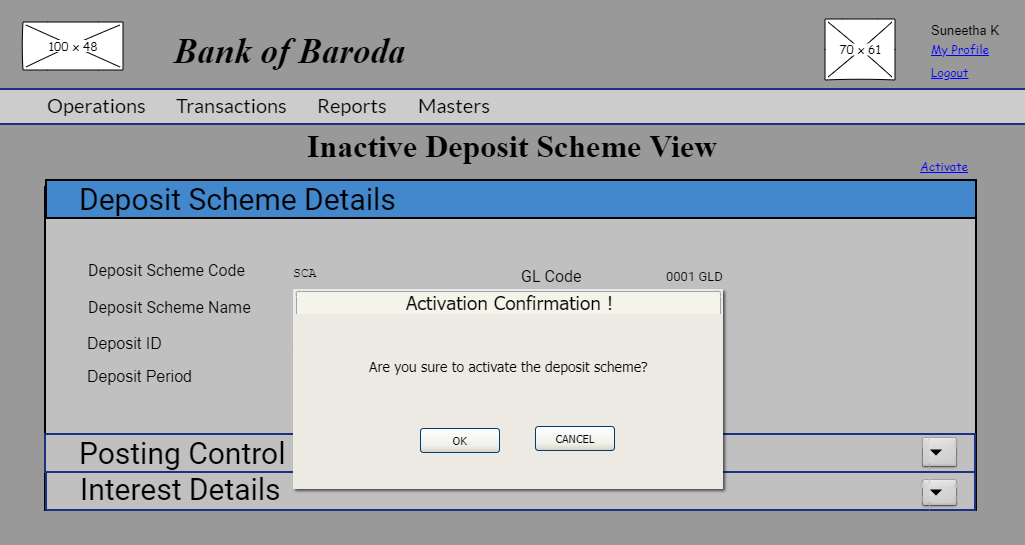
When you click on "OK" button, the deposit scheme gets activated and you are redirected to deposit scheme page. active deposit scheme view page
Deposit Scheme Deactivate
User story reference: U2604
Click the "Deactivate" link from an active deposit scheme view page.
When u click that, a confirmation dialog will be presented that asks whether to deactivate the given deposit scheme. The deposit scheme gets inactive(deactivated) after the confirmation.
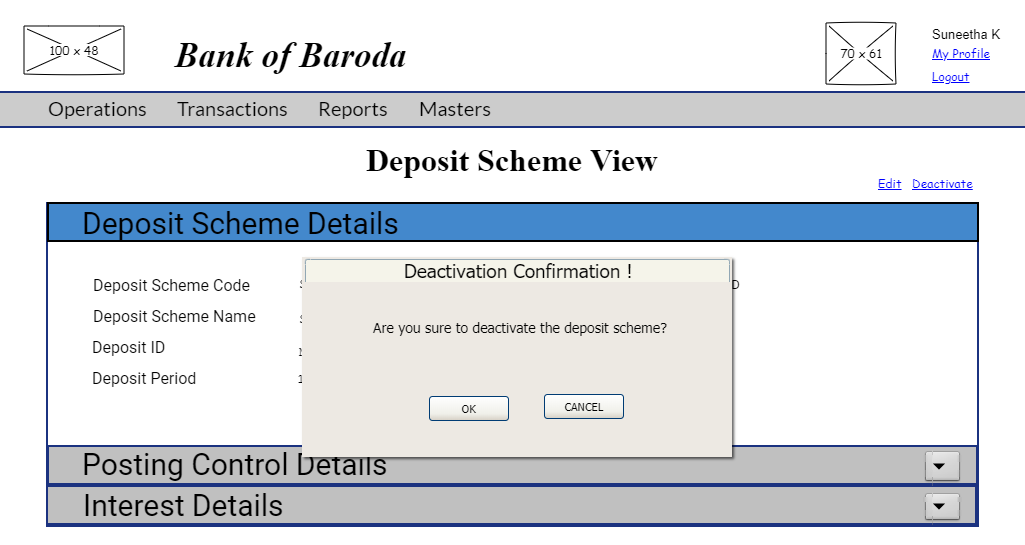
When you click on "OK" button, the deposit scheme gets deactivated and you will be redirected to the inactive deposit scheme list page Deposit Scheme Inactive.
Deposit Scheme Change Approval
User story reference: U2605
The approval task list will be visibe only to the user with responsibility to authorise a deposit scheme detail change. By clicking that you are taken to the list of tasks pending for approval.
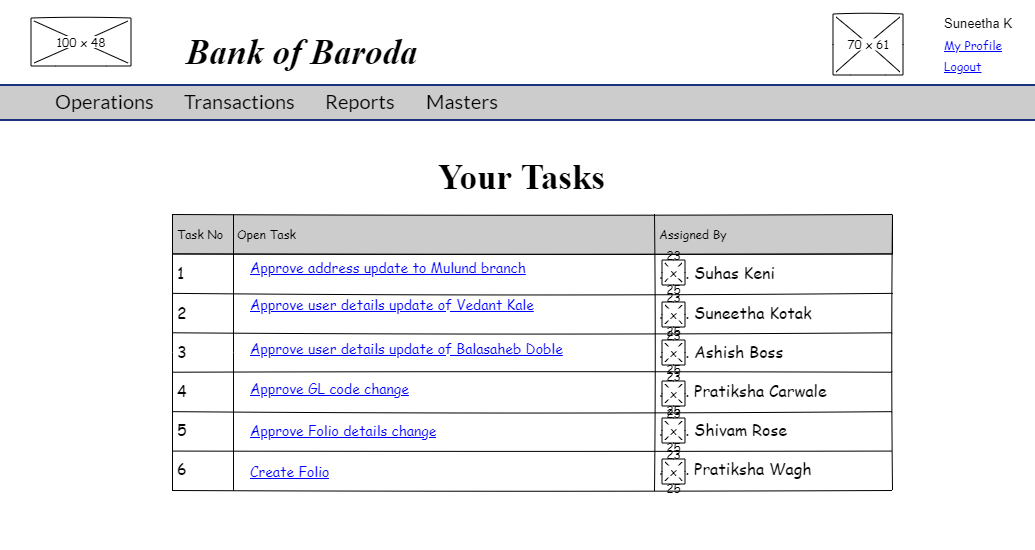
When clicked on a particular task, are directed to approve deposit scheme page. Here is the UI for same.
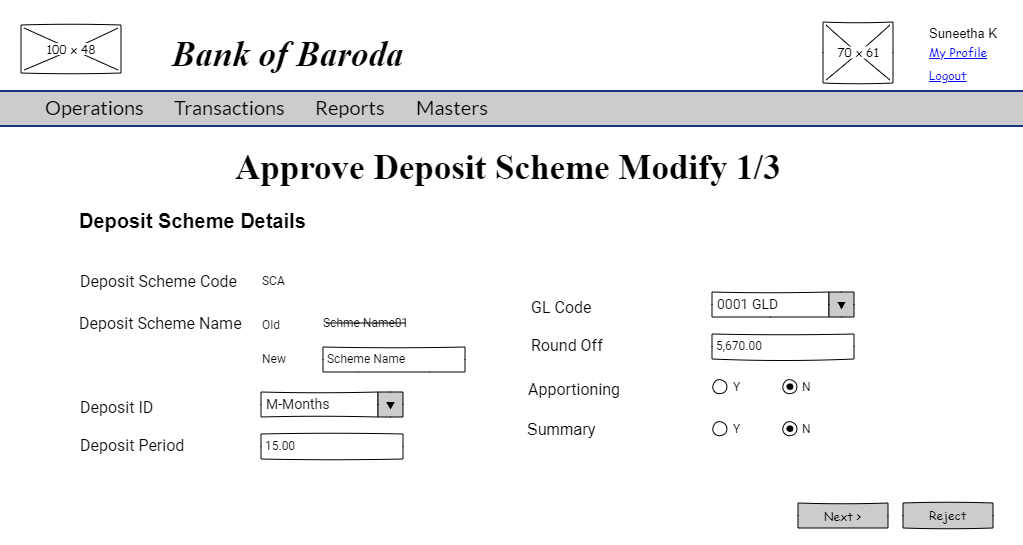
You review the deposit scheme details page.
By clicking on "Reject" button you can reject from the step 1 page.
By clicking on the "Next" button, you are directed to posting control details UI.
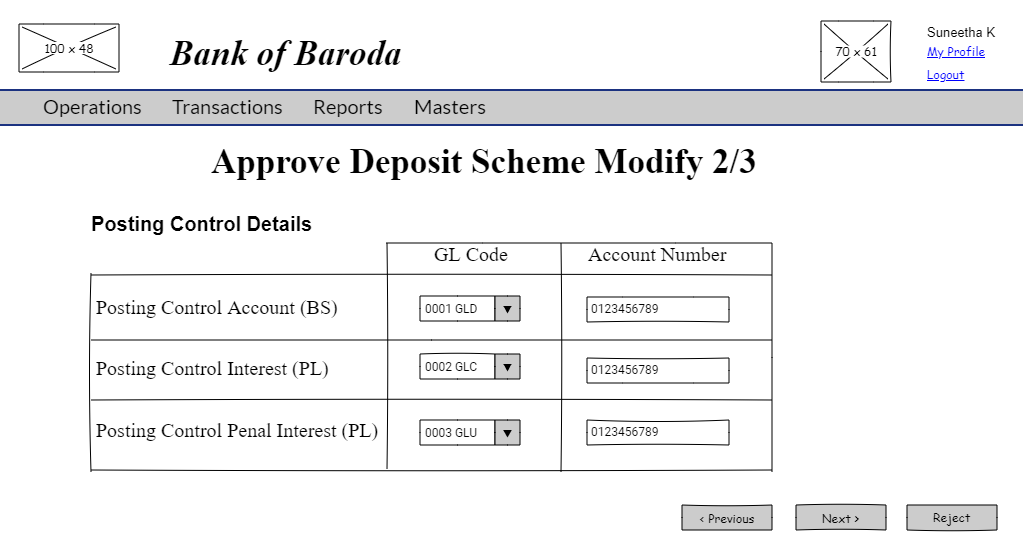
You review the posting control details page.
By clicking on "Reject" button you can reject from the step 2 page.
By clicking on the "Next" button, you are directed to interest details of deposit scheme UI.
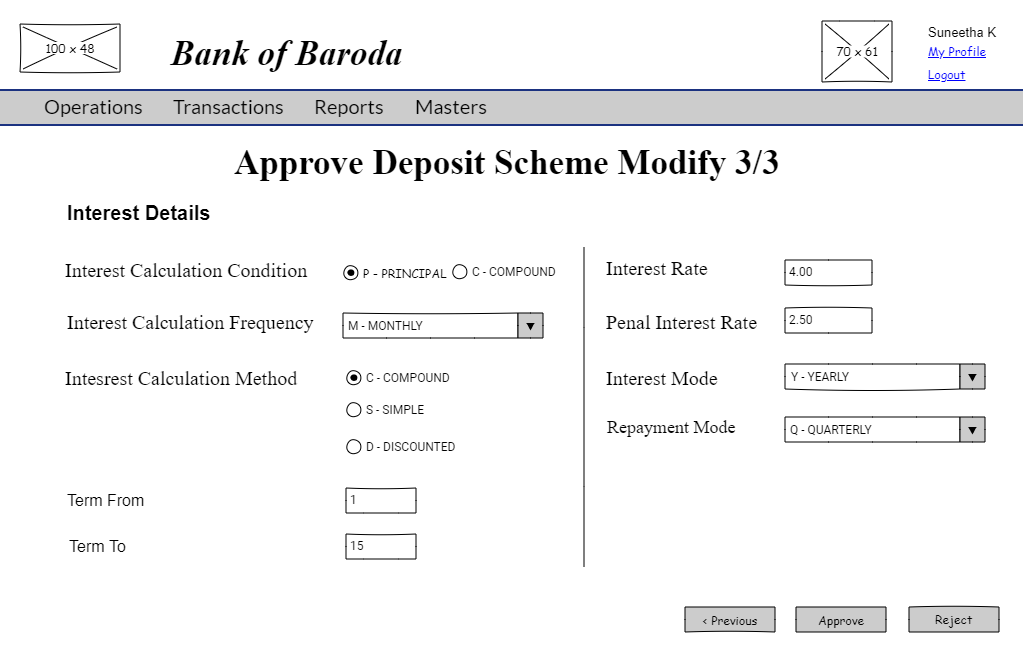
If "Reject" button is clicked, the deposit scheme detail change will not be saved with an information mesage and you are redirected to approval task list page.

If "Approve" button is clicked, the deposit detail change will be saved with an information message and you are redicrected to approval task list page.

Please refer to edit approve screen validations.
Deposit Scheme Create Approval
User story reference: U2605
When clicked on a particular task, you are directed to approve create deposit scheme page. Here is the UI for new deposit scheme details.
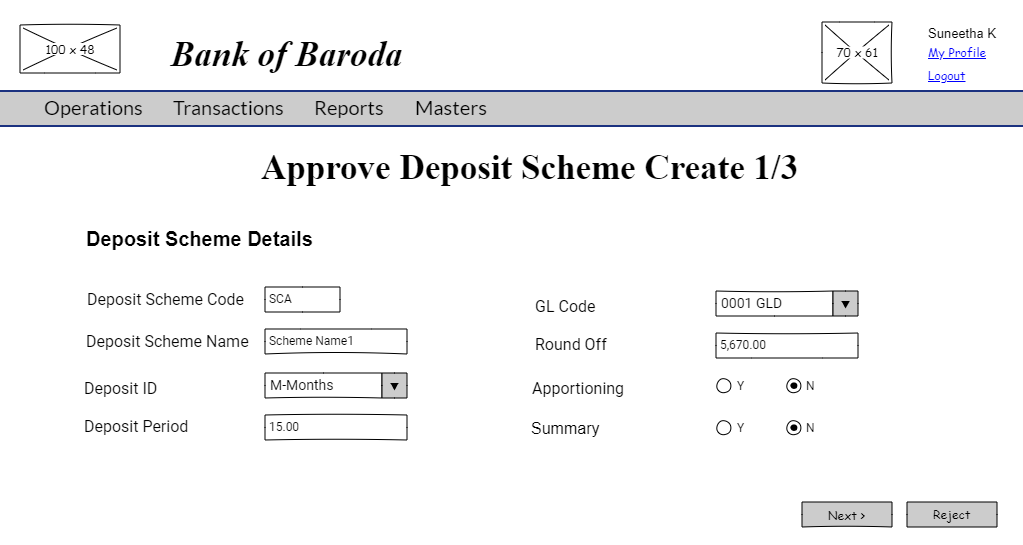
You review the deposit scheme details page.
By clicking on "Reject" button you can reject from the step 1 page.
By clicking on the "Next" button, you are directed to posting control details UI.
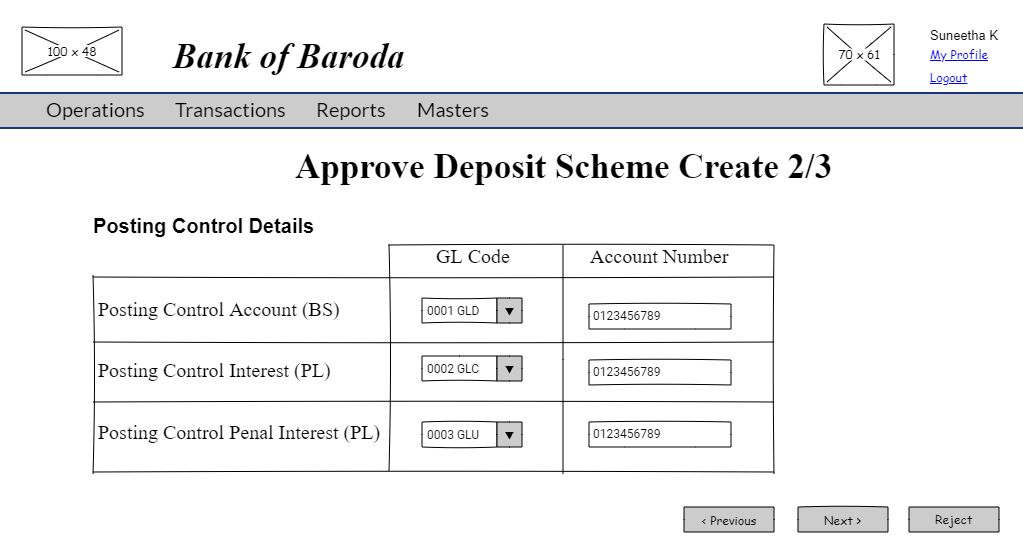
You review the posting control details page.
By clicking on "Reject" button you can reject from the step 2 page.
By clicking on the "Next" button, you are directed to interest details of deposit scheme UI.
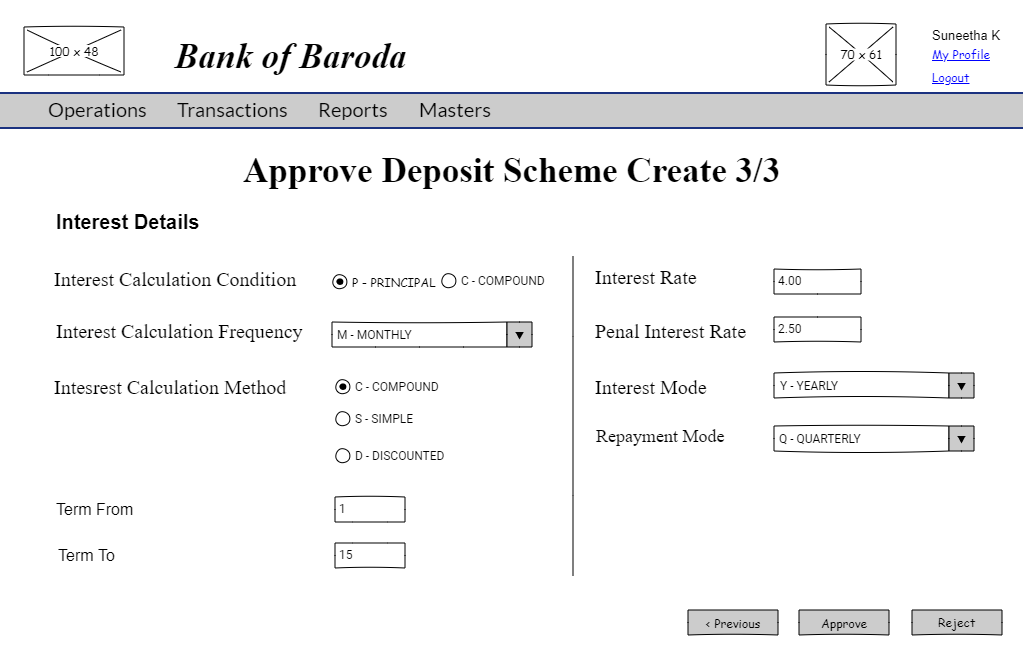
If "Approve" button is clicked, the deposit scheme created is saved. You are redicrected to approval task list page with a information message.
If "Reject" button is clicked, the deposit scheme created is not saved. You are redicrected to approval task list page with a information message.
Please refer to create approve screen validations.
Please refer to approval workflow validations.